Documentation

Setup & how-to
guides.

Everything you need to get SimplyWill™ installed, configured, and running across your firm — step by step, with no IT background required.

Step by step No IT background required
01 Installing SimplyWill™

SimplyWill™ installs on any Windows PC in under 5 minutes. No administrator rights are required. The installer is fully code-signed — you will not see any security warnings from Windows.

  1. Download the installer from the Downloads page. The file is named SimplyWills Setup 2.11.0.exe.
  2. Double-click the installer. If prompted by User Account Control, click Yes. The installer will proceed without further input.
  3. SimplyWill™ installs and places an icon on your Desktop and Start Menu.
  4. Launch SimplyWill™. On first launch, it will create your database and prompt you for your licence key.
  5. Enter your licence key and click Activate. This requires a brief internet connection (under 5 seconds). After activation, SimplyWill™ runs fully offline.
  6. You are ready. Import existing clients (guide 02) or start drafting a new Will immediately.
Requirements: Windows 10 or 11, 64-bit · 4 GB RAM minimum · under 200 MB disk space. Internet required only for licence activation, not for daily use.
02 Multi-User LAN Network Setup

SimplyWill™ supports multiple workstations sharing one database over your office network. All users see the same live data in real time. No server software is required.

  1. On the host PC, open SimplyWill™ and go to Settings → Network → Share Database.
  2. Select a shared network folder that all workstations can access with full read/write permissions. SimplyWill™ moves the database there and restarts.
  3. On each additional workstation, install SimplyWill™ with the same installer (each workstation uses one seat of your licence).
  4. On each additional workstation, go to Settings → Network → Connect to Shared Database and browse to the shared folder from step 2.
  5. SimplyWill™ connects. Repeat for each workstation. All machines now share one live database.
Note: The host PC (or NAS holding the shared folder) must remain on during office hours for other workstations to connect. If the host is off, other users cannot access the database.
03 Importing Legacy Clients (Excel / CSV)

If your firm has existing client records in a spreadsheet, SimplyWill™ can import them automatically. No reformatting required — SimplyWill™ auto-detects column headers.

  1. Go to Clients → Import Clients in the main menu.
  2. Click Browse and select your Excel (.xlsx) or CSV (.csv) file.
  3. SimplyWill™ shows a column mapping screen. Match each column to the corresponding SimplyWill™ field. Auto-detected columns are pre-mapped.
  4. Click Preview Import to review the data. Correct any mapping mismatches.
  5. Click Import. Each client receives an Will Dossier automatically.
  6. Review the import summary — rows that couldn't import are listed with reasons for correction and re-import.
Required fields: First Name, Surname, and either SA ID Number or Date of Birth. Vault numbers and Will reference numbers can also be imported and will populate the Custody Log immediately.
04 Creating & Using Custom Will Templates

The Custom Will Suite loads your firm's approved clause wording into SimplyWill™ as the default. This is configured by our team during setup — these steps cover using and maintaining your custom templates once in place.

  1. In the Will wizard, clauses customised for your firm show a gold badge — these use your firm's approved wording by default.
  2. Click the eye icon next to any clause to preview it before including it in a Will.
  3. To update your custom clause wording, email support@simplywill.co.za with the revised text. Updates are delivered via the automatic update system.
  4. To add a new custom clause, email support with the clause text and the Will type(s) it applies to. It will be added in the next update cycle.
Custom Will Suite subscribers only. To enquire about upgrading, contact sales@simplywill.co.za.
SimplyWill™ in action
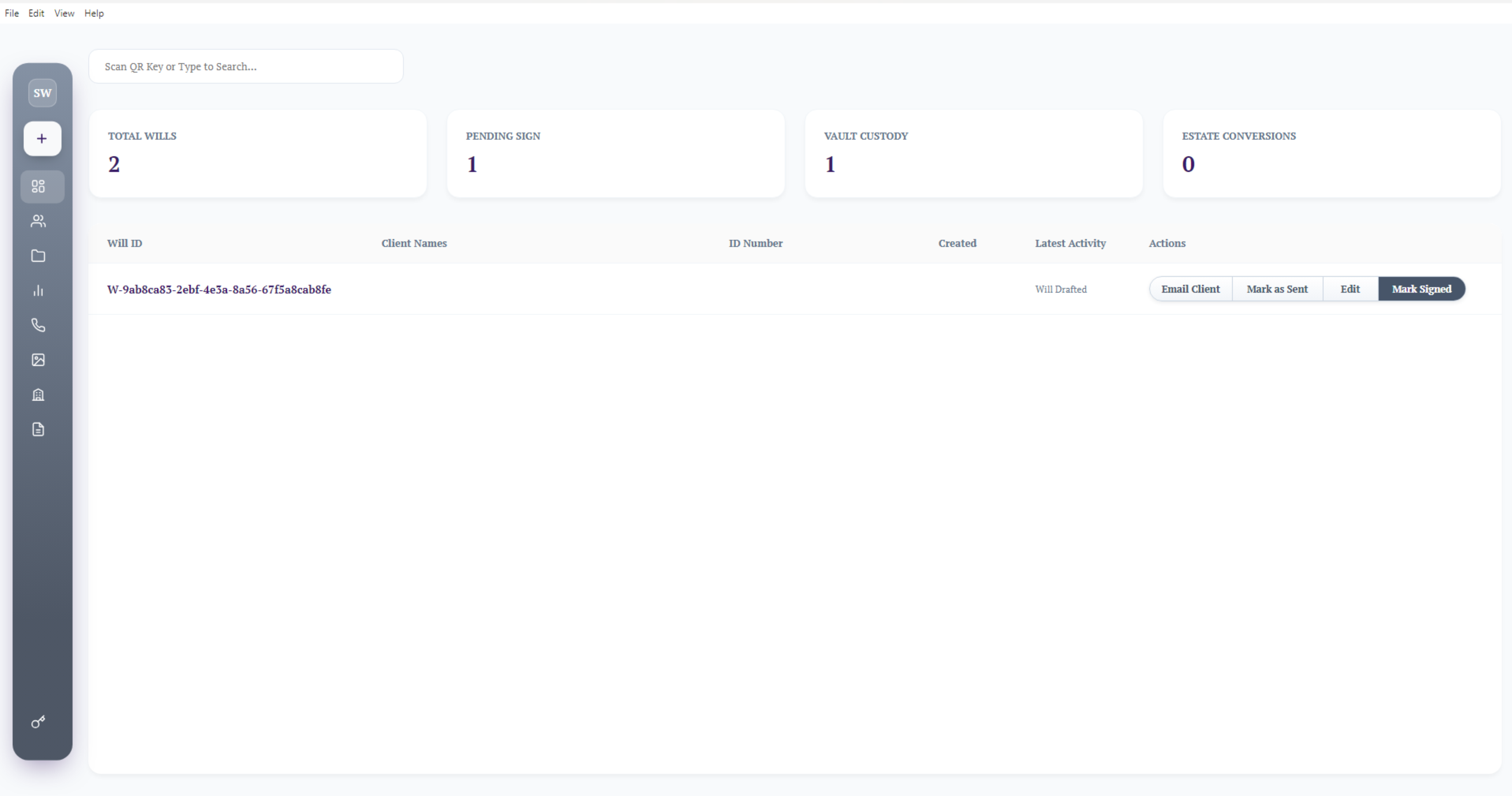
SimplyWill™ Will Database
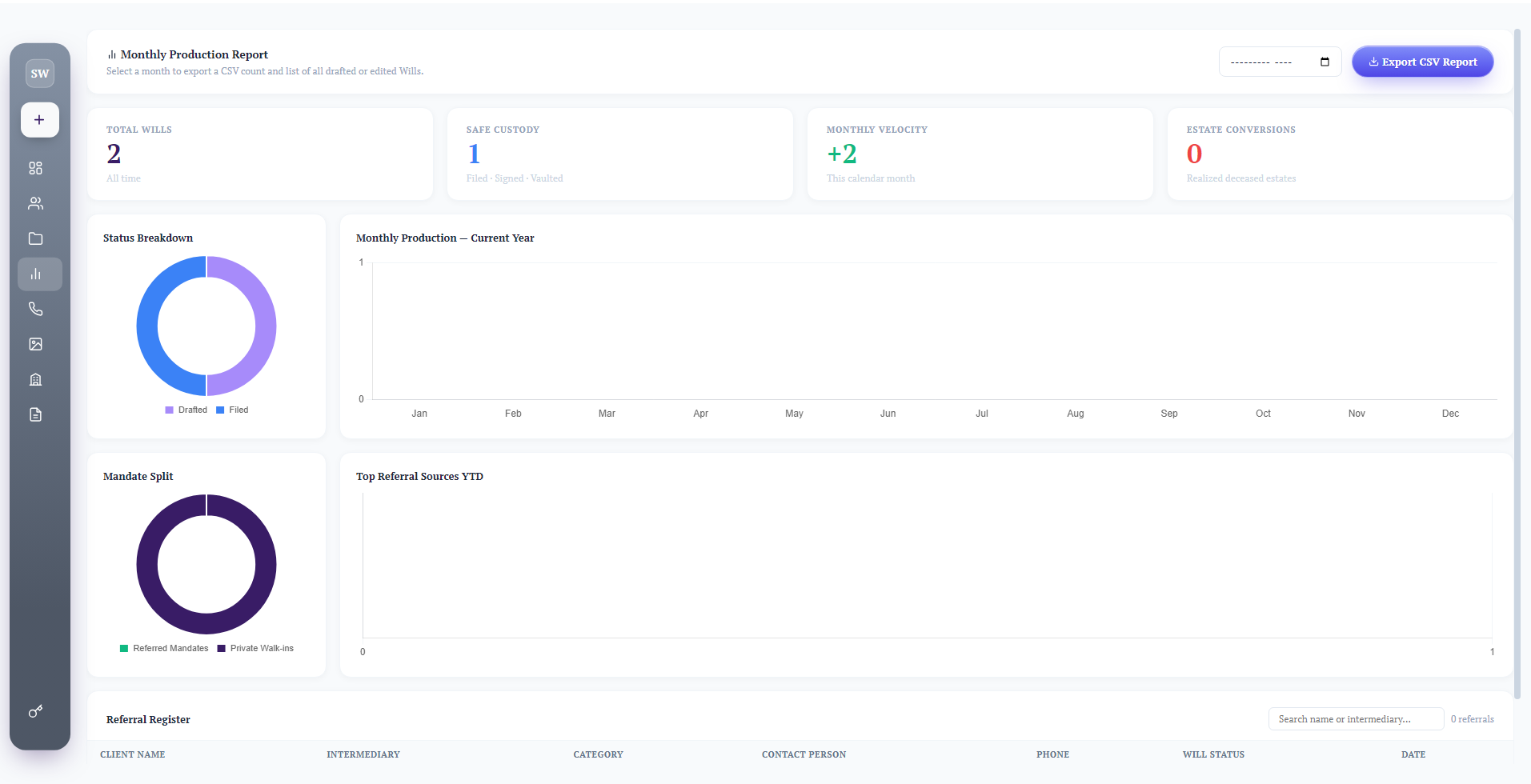
SimplyWill™ Monthly Production Report

Ready to get
started?

Start your free 7-day pilot. We install SimplyWill™ in your firm and walk you through setup — no IT knowledge required.

Start Your Free Pilot Download SimplyWill™
Chat on WhatsApp